What it is
What is a list picker in Apple Messages for Business?
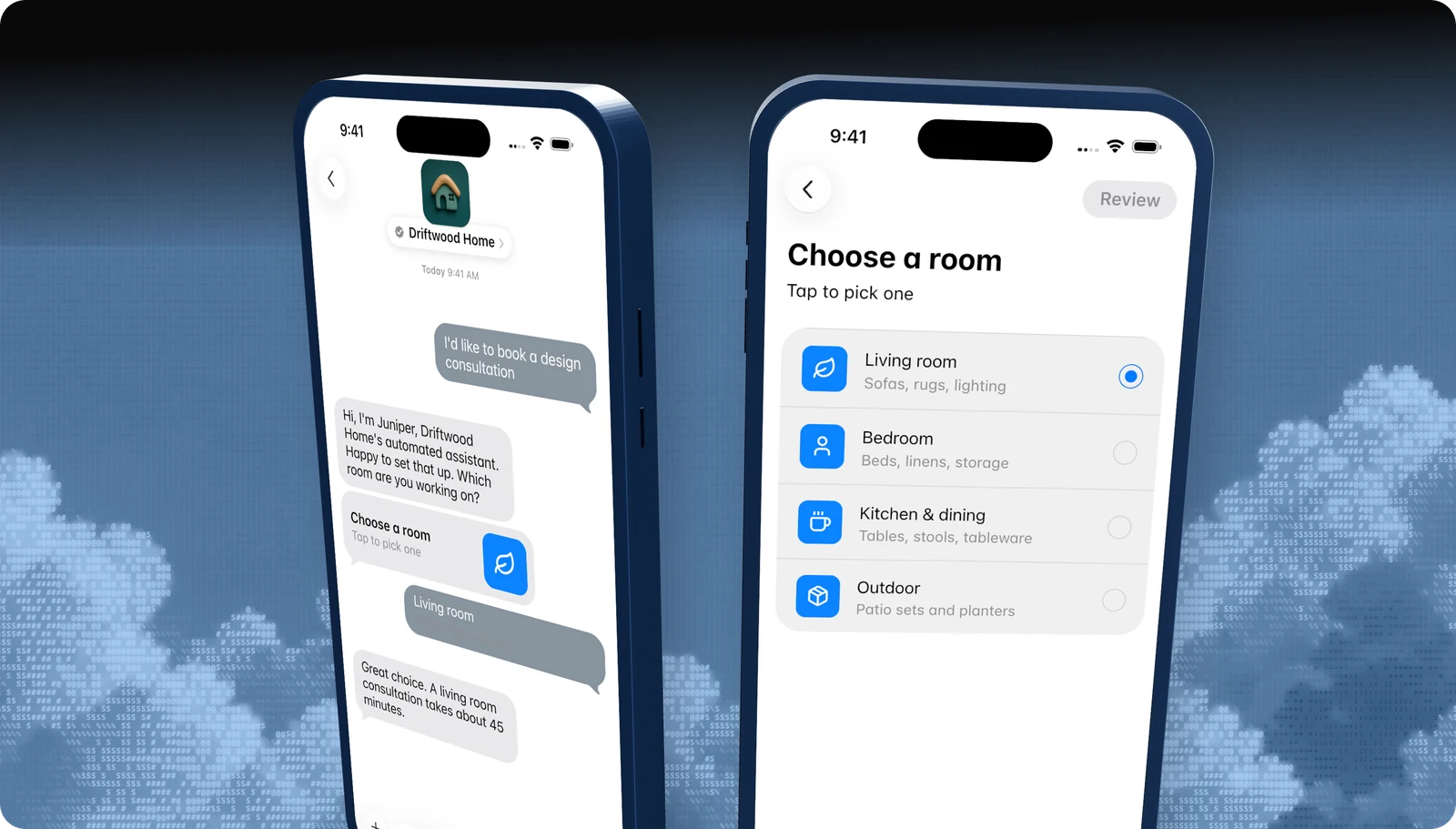
A list picker sends one or more sections of selectable rows. Each row has a title, an optional subtitle, and an optional image. The customer taps the card, picks one row (or several, if you allow it), and taps Send.
Their choice comes back to your webhook with the row identifiers, so your bot knows exactly what was picked without parsing text.
| At a glance | |
|---|---|
| What it is | Sections of tappable rows with optional images |
| Devices | iPhone, iPad, Mac |
| Minimum OS | iOS 11.3, macOS 10.13.4 |
| Capability token | LIST |
| Blooio field | interactive.kind = list_picker |
What customers see
What it looks like
- 01
The card in the thread
A bubble with your title and subtitle, such as Choose a room, and an icon. You set it with received_message.
- 02
The opened list
A full-screen sheet with your sections and rows. Rows can show an icon or photo and a subtitle.
- 03
The reply bubble
After the customer sends, the thread shows what they picked, styled by reply_message.
Use cases
When to use it
Catalogs and menus
Products, drinks, services, or rooms, each with a photo and a price.
Locations
Pick a store, clinic, or branch from a list of nearby options.
Longer triage
More than five reasons for contact, grouped into sections.
Multi-select
Let customers choose several add-ons or topics in one go.
Common mix-ups
What it is not
Not for two to five plain options
If you have five or fewer short options without images, Apple expects a quick reply instead.
Not a form
A list picker collects one choice per section. For several questions in a row, use a form.
Not on Apple Watch
Watch shows conversations but doesn't render interactive messages.
Not a substitute for an intro
Instructions belong in a text bubble before the picker, not inside it.
Experience Review
Apple's rules for this feature
- Send a short text bubble first to introduce the picker.
- Use sections only when categories really differ. One section is fine.
- Add a relevant image to the card and rows where it helps the customer choose.
- Five or fewer options without images should be a quick reply.
Apple checks these during the Experience Review and after launch. Every rule for every feature is in the Experience Review checklist.
Developers
Send it with the Blooio API
One call to POST /v4/messages from your Apple Messages for Business sender. Full field reference in the List picker in the interactive messages guide.
curl -X POST https://api.blooio.com/v4/messages \
  -H "Authorization: Bearer bl_live_..." \
  -H "Content-Type: application/json" \
  -d '{
    "from": "support",
    "to": "opaque-amb-customer-id",
    "interactive": {
      "kind": "list_picker",
      "received_message": { "title": "Choose a room", "subtitle": "Tap to pick one", "style": "icon" },
      "reply_message": { "title": "Room selected", "style": "icon" },
      "sections": [
        {
          "title": "Rooms",
          "multipleSelection": false,
          "items": [
            { "identifier": "living", "title": "Living room", "subtitle": "Sofas, rugs, lighting" },
            { "identifier": "bedroom", "title": "Bedroom", "subtitle": "Beds, linens, storage" },
            { "identifier": "kitchen", "title": "Kitchen & dining", "subtitle": "Tables, stools, tableware" },
            { "identifier": "outdoor", "title": "Outdoor", "subtitle": "Patio sets and planters" }
          ]
        }
      ]
    }
  }'
Managed launch
Want a list picker without writing code?
Blooio's managed Apple Messages for Business bot already uses a list picker the way Apple expects, alongside every other feature, with a human in the loop. We build the flows, connect your systems, and get you through the Experience Review.
Go deeper
List picker in the Blooio docs
The developer guide and API reference for this feature, with request fields, replies, and error handling.
docs.blooio.com
List picker in the interactive messages guide
Fields, sections, multi-select, images, and reading the reply.
docs.blooio.com
POST /v4/messages API reference
Every field, its JSON schema, and an interactive API explorer.
docs.blooio.com
Capabilities & limits
OS minimums, device support, and capability tokens for every feature.
More Apple Messages for Business features
Business invitations
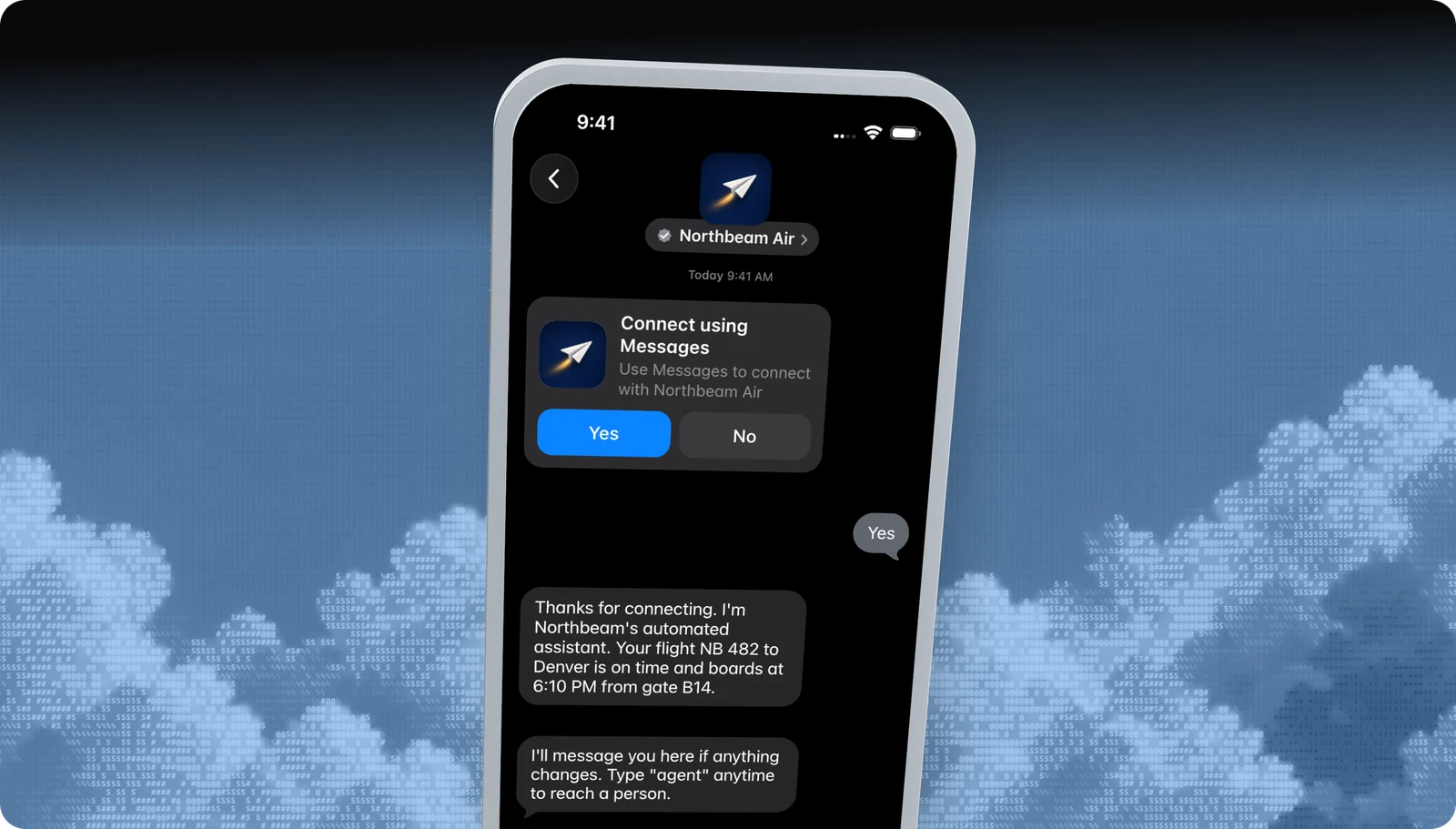
Start the conversation first, with an Apple-managed Yes / No invite.
Quick replies
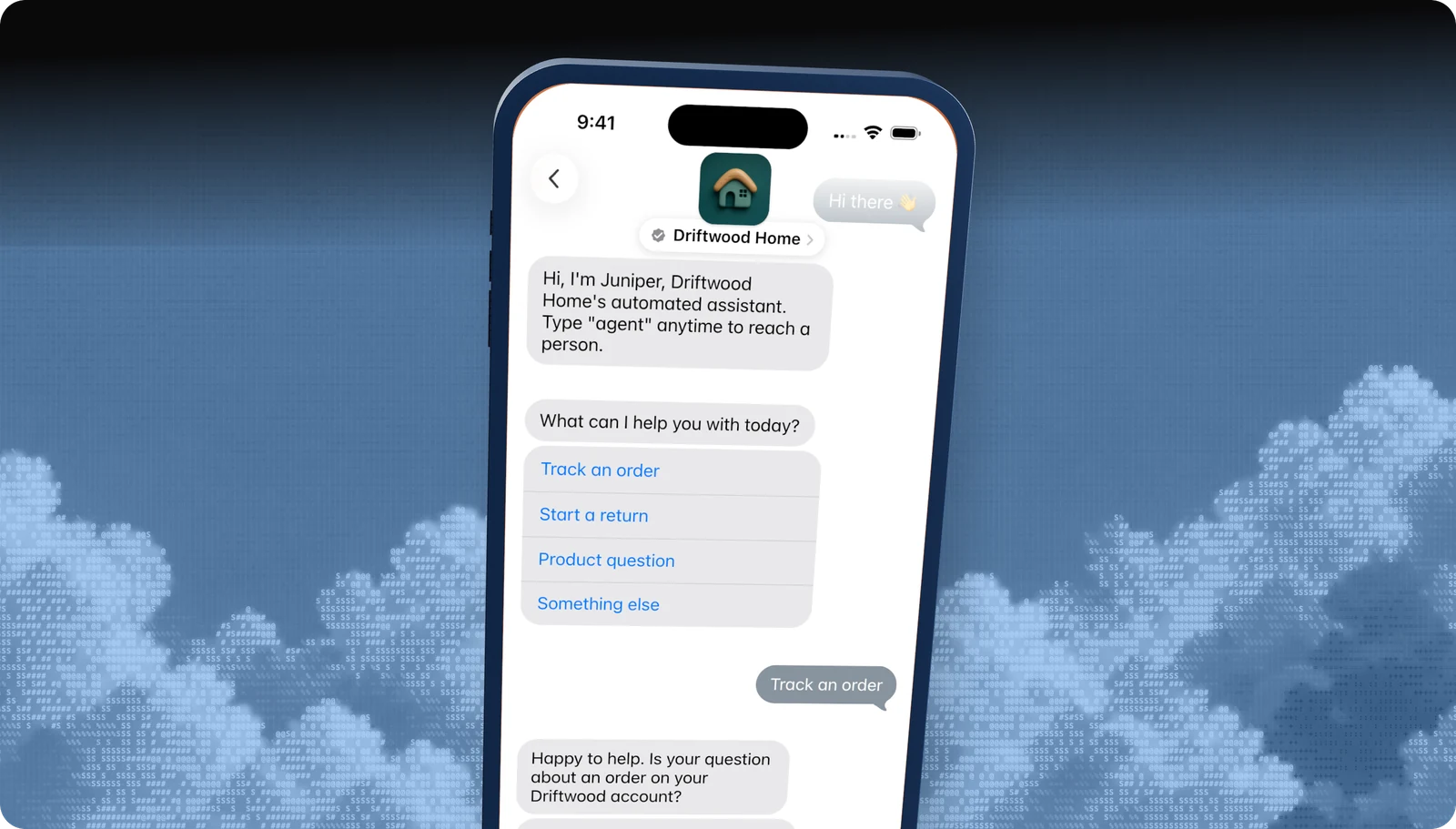
Two to five tappable answers under a question.
Time picker
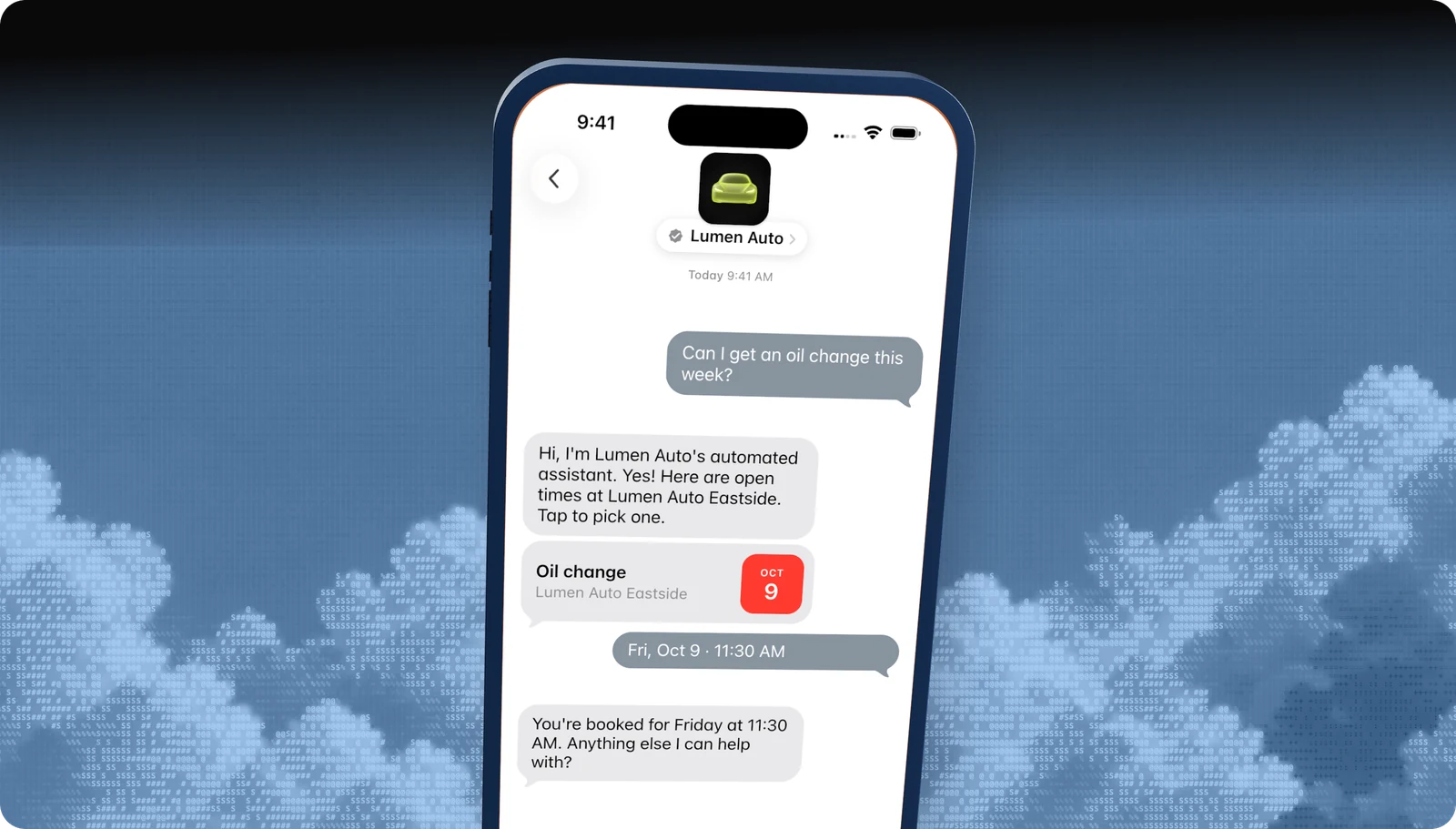
Offer appointment slots the customer books with a tap.
Apple Pay
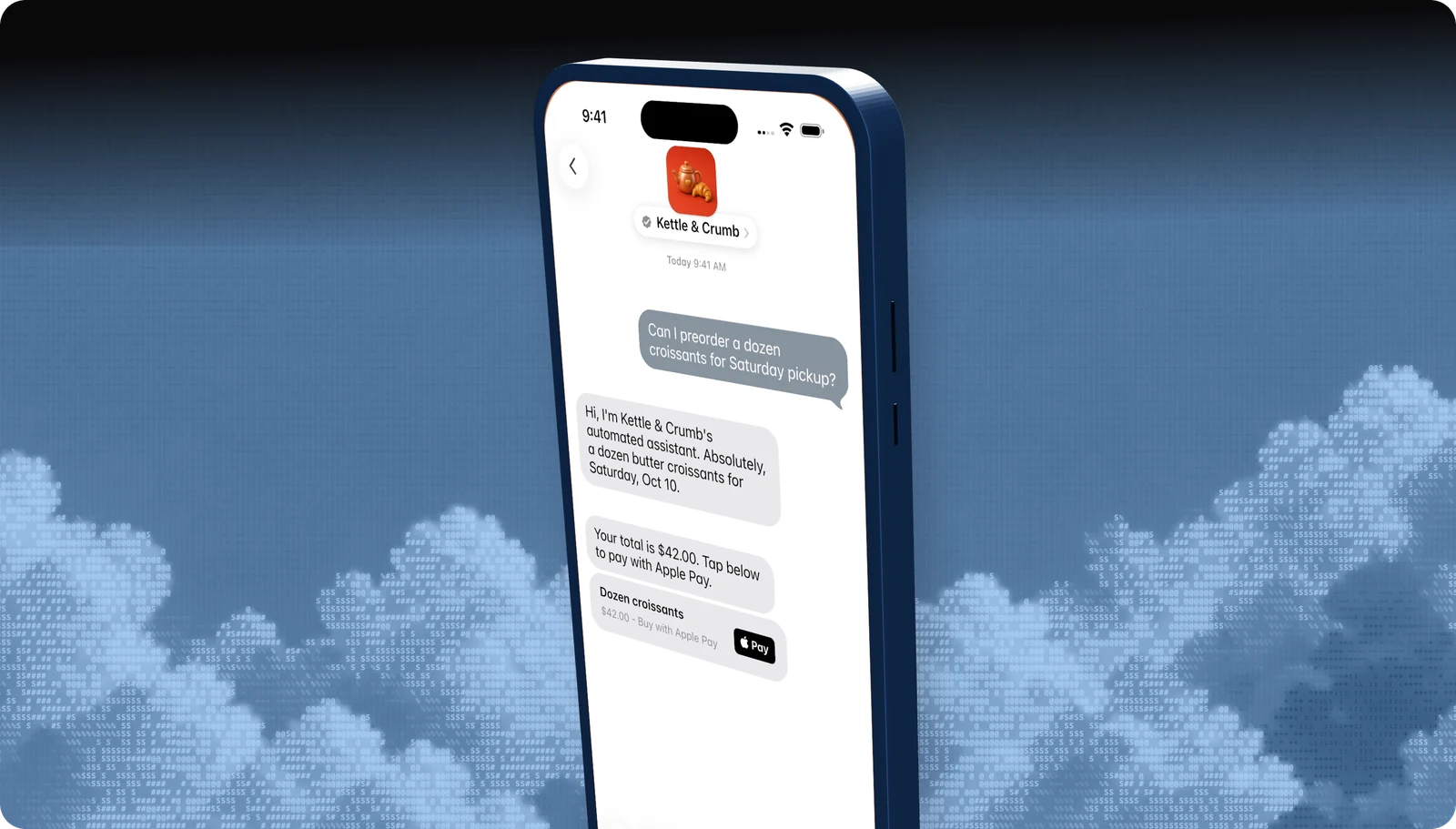
Take payment inside the conversation with Face ID or Touch ID.
Forms
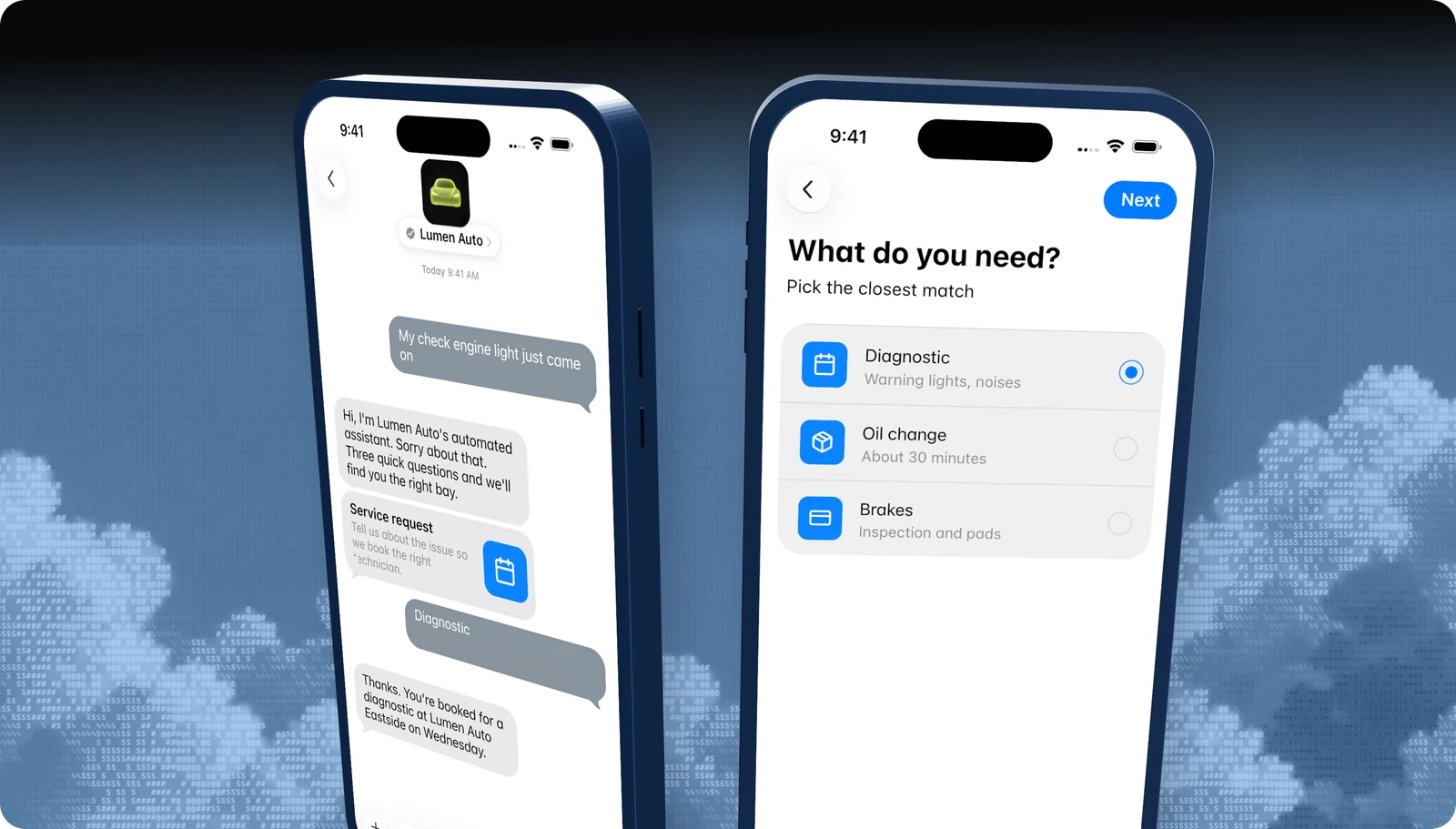
Multi-step questions, dates, and pickers in one native flow.
Sign in
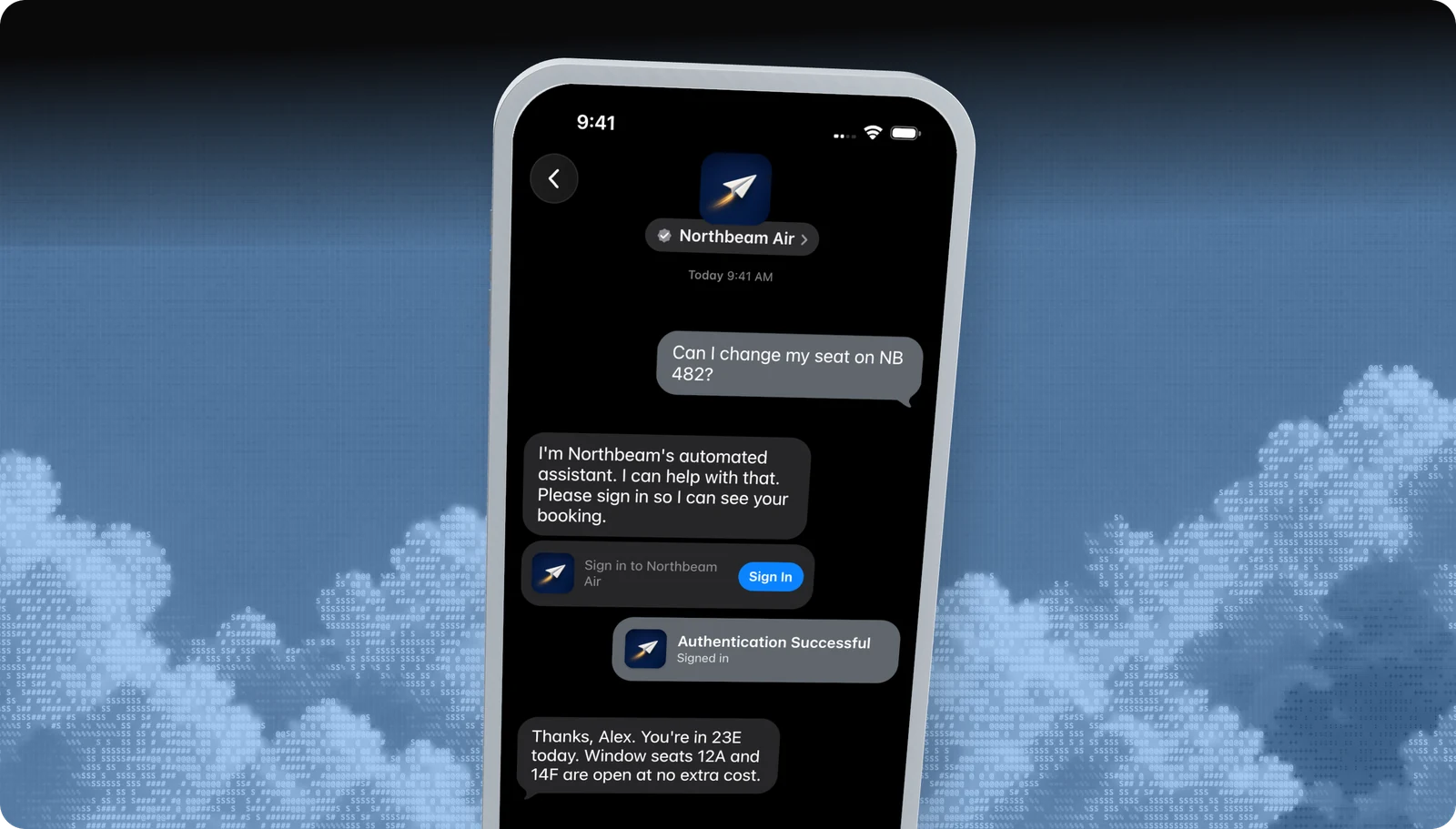
Let customers sign in to their account without leaving Messages.
Rich links
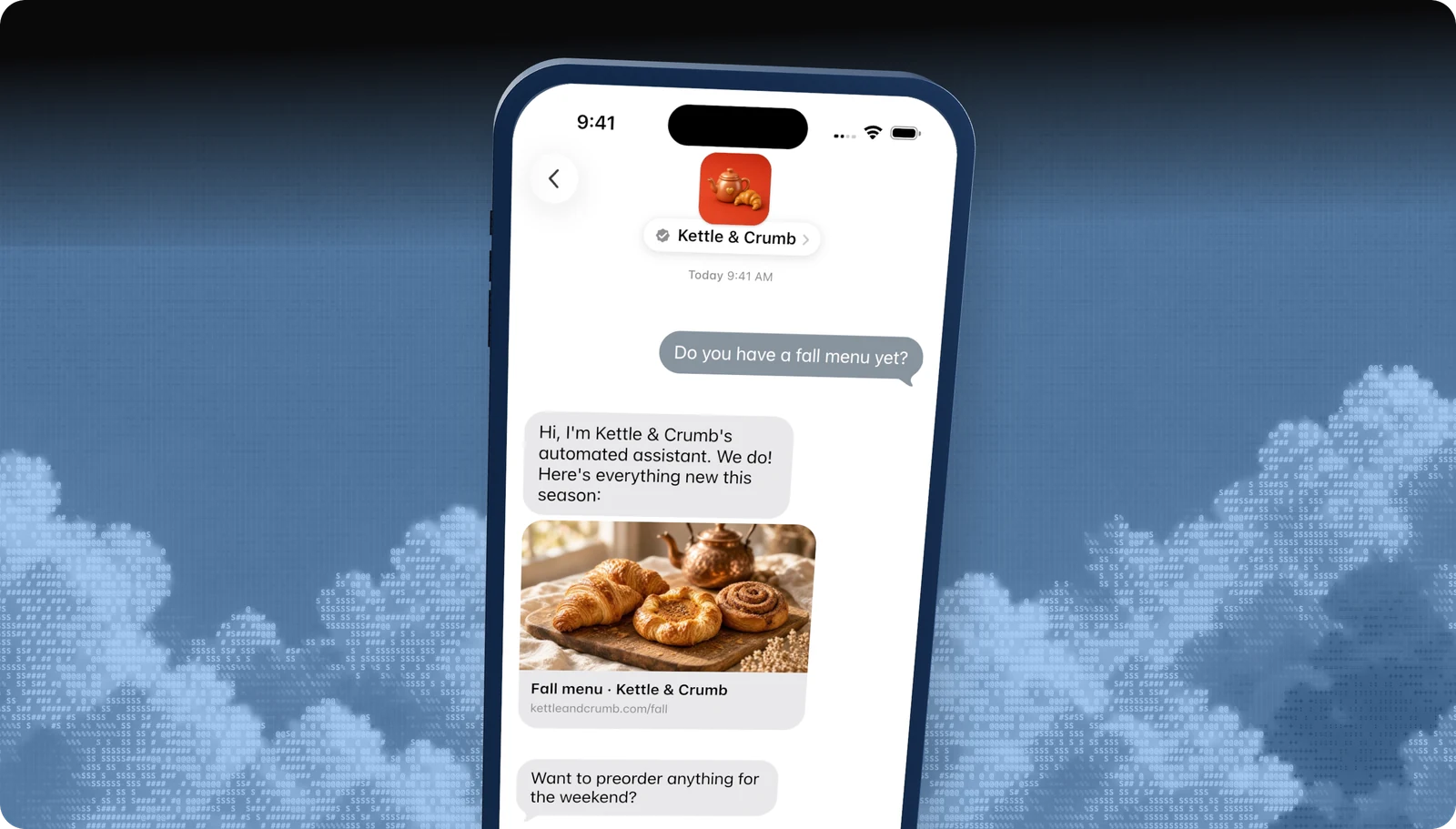
Turn any URL into a tappable preview card.
All features · Experience Review · Apple Messages for Business API
Questions
Apple's own rules live in the Apple Messages for Business documentation. These are the questions brands ask us most.
- Brand verification
- Sandbox testing
- Experience Review
Empower your team. Achieve more.
Apple Messages for Business launches after brand verification, testing, and Apple's Experience Review. Talk to us and we'll scope the journey.